See any CS2 skin in 3D before you buy it
Inspekt's studio shows Counter-Strike 2 skins in 3D in your browser, for guns, knives and gloves. Pick a skin, set its float and pattern seed, add stickers or a charm, and turn it around to check every side. You need no account, only Chrome or Edge.
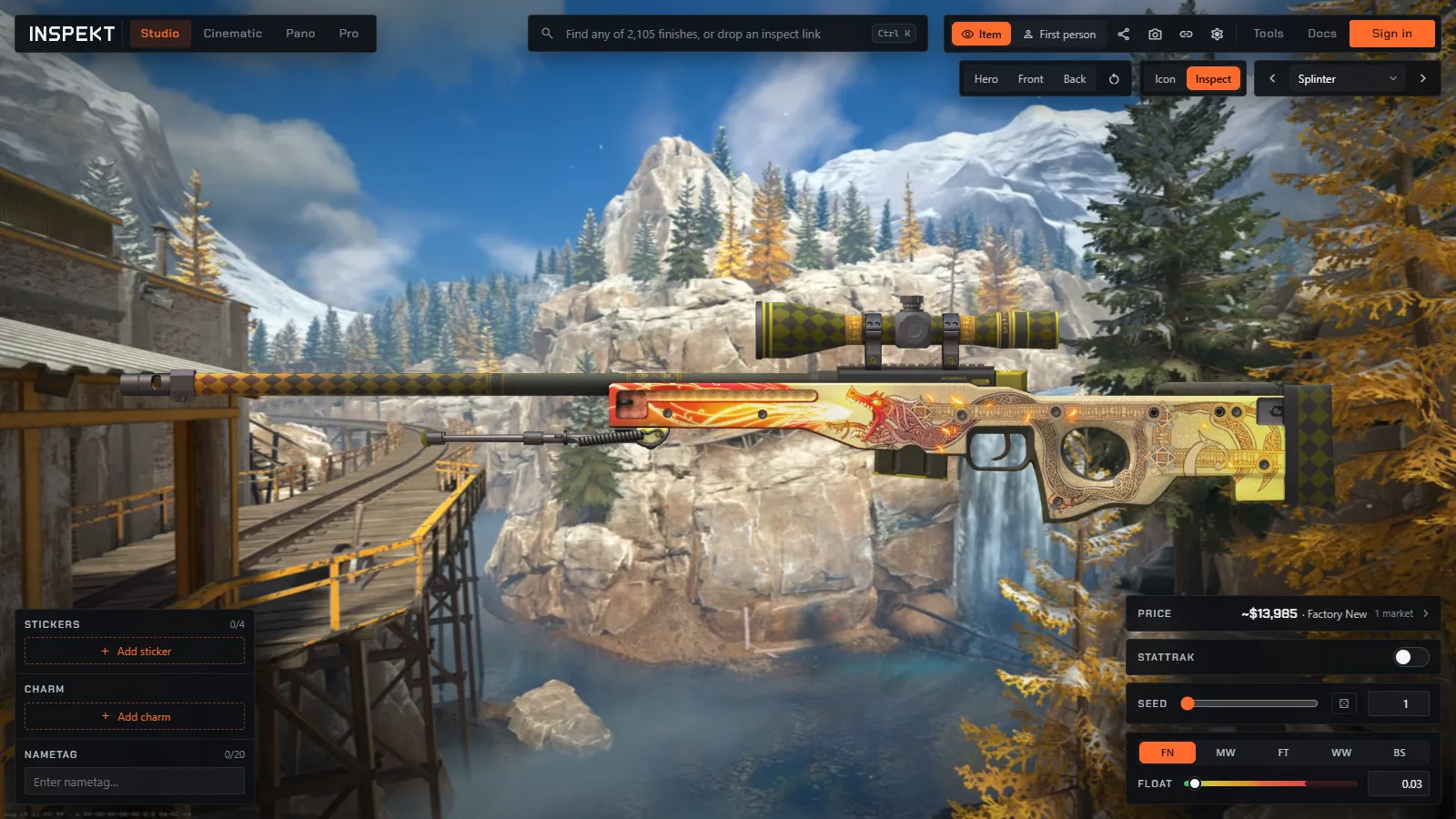
What you can check
Float and wear
Drag the float slider anywhere from 0.00 to 1.00, or type an exact value. Five buttons jump to the wear tiers, Factory New to Battle-Scarred, and the slider dims the floats a finish cannot reach. Scratches and fading follow the slider, so you can compare a 0.01 Factory New with a 0.14 Minimal Wear on the same gun.
Pattern seed
Set the pattern seed from 0 to 1000, the game's range, or roll a random one. The seed picks where the pattern lands on finishes such as Case Hardened, Fade and Crimson Web. The studio's Families view ranks the seeds of Case Hardened, Fade, Marble Fade and Doppler, and it ranks a Case Hardened AK-47 or Karambit by how much of the side reads blue.
Doppler phases and gems
Each Doppler and Gamma Doppler phase is its own entry in the catalog, so Phase 2, Ruby, Sapphire, Black Pearl and Emerald each open on their own. In the Best patterns strip the gems come first, and picking a phase lists its best seeds under it.
Stickers and sticker crafts
Put up to five stickers on a gun and give each one its own wear, to see a craft before you buy the stickers. Some guns have fewer sticker positions, and the Stickers panel shows how many each one takes. Stickers loaded from an inspect link keep their slot, wear and placement.
StatTrak counter and name tag
Mount the StatTrak counter on a gun and type a kill count. Any item that takes a name tag gets a text field for one, up to 20 characters, knives included.
Charms
Hang a charm from a gun, set its pattern, and click the spot on the gun where it should hang. The charm holds a still pose, where the game lets it swing.
Map backdrops and lighting
Stand the item in front of a backdrop recorded in a CS2 map, such as Dust II, Train or Office, or on a plain background. The Lighting switch has two settings: Icon, the look of the inventory picture, and Inspect, the look of the in-game inspect screen.

On its own, in an agent's hands, or in first person
The View switch shows the item on its own, held by an agent you choose, or through the first-person viewmodel with the gloves you pick. In first person, F plays the inspect animation.
Your own inventory
Enter your SteamID, profile name or profile link and the studio lists the skins in your Steam inventory with their float, pattern seed, stickers, name tag and StatTrak count. Pick one and that item loads. The inventory has to be public on Steam.
Share links and screenshots
The share button copies a short link that opens the same skin with the same float, seed, stickers, charm and name tag, and chat apps show a picture of the item when the link is posted. The camera button saves a PNG at twice the size of the view on screen.
How to see a skin in 3D
- Open the studio in Chrome or Edge.
- Search for a skin by name, such as AK-47 Redline, or browse by weapon, collection or pattern family. To open one particular item, paste its inspect link into the same search box.
- Set the float and pattern seed, then add stickers, a charm or a name tag.
- Drag to turn the item, pick a backdrop, and copy a share link or save a screenshot.
Questions
Is the 3D viewer free?
Yes. You can use the studio without an account or an install. Pro Studio, which captures pictures up to 4K, is part of the paid Lens plan.
Which browsers does it work in?
The 3D view needs WebGPU, so open it in Chrome or Edge. In other browsers the studio shows a notice in place of the 3D view, and the catalog still works.
Does it work on a phone?
The studio has a phone layout with the controls in a sheet at the bottom of the screen. The 3D view still needs WebGPU, so it depends on the phone's browser.
How close is it to the game?
Our docs put our render next to Valve's own render of the same skin for several finishes, so you can judge the match yourself. We know of two differences. The charm holds a still pose, and stickers lie flat on the surface.
What does the pattern seed change?
It picks the crop and rotation of the pattern texture on the item. On a Case Hardened that decides how much blue shows on each side, so two items of the same skin and float can look different.
Can I look at one particular item from a listing or my inventory?
Yes, from an inspect link copied in CS2 or from your public Steam inventory. The inspect link viewer explains which links open.
Can I save a picture of a skin?
Yes. The camera button saves a PNG at twice the size of the view, and a share link shows a picture of the item in chat apps.
Does it show what a skin costs?
Yes. A Price row at the top of the controls shows the price for the wear you have set, and each version has a price page. See the skin prices guide.